Guide
How to tell a repair customer their device is ready
Service tickets, a status look-up with the code on the ticket, and a routine for calling or messaging on WhatsApp, to cut “is it ready yet?” calls.
This guide is based on the record flow of the sample-data repair service demo shown on this site. It is not a ready-made product or a result from a real repair shop, and it is not legal advice. It contains no prices or turnaround figures.
The problem: “is my device ready?” calls
In a small repair shop a large part of the day can go to answering one question: is my phone ready, what happened to the fridge, has the part come? The answer is usually in a notebook, on a piece of paper or in the technician’s head, so the person calling hears “let me check and call you back”. The fix is not a big system; it is keeping each device’s status in one place, written in the same words by everyone, and letting the customer look for themselves.
Open a service ticket for every device
Open a ticket as soon as the device arrives: customer, device, a description of the fault and the date it was received. In the sample application a ticket is kept with the customer and the device, and the new ticket form is on one screen. Entering it while the device is on the counter, rather than writing it on paper and copying it later, gives the fewest mistakes.
Name the statuses so everyone reads them the same way
In the sample application the statuses are: received, under inspection, waiting for parts or approval, ready, and delivered. The list is deliberately short. Choose “ready” only when the device really is ready to hand back; showing a job that is waiting for approval as “ready” makes the customer come in for nothing. Each change is added to the ticket’s history with its date and time, so when a customer says “it was under inspection last week” you can check.
Let the customer look with the code on their ticket
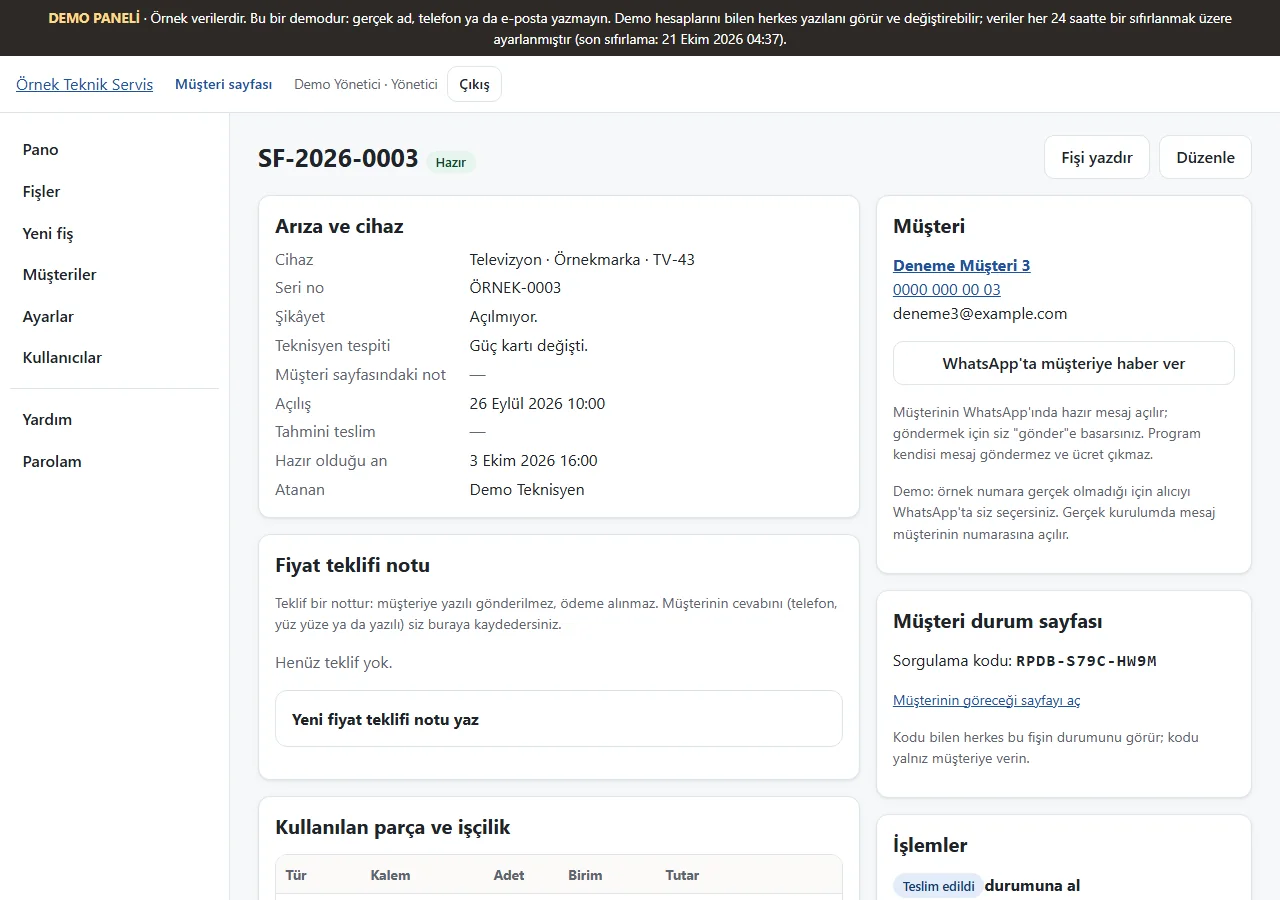
In the sample application each ticket carries a secret code of 12 letters and digits. The customer types it on the shop’s status page and sees the device’s status, the note from the shop and the history; dashes in the code do not matter. The page does not show the customer’s name, phone number or fault description, so someone who does not know the code cannot reach personal details. No payment is taken and no approval is given on that page; the decision is passed to the shop by phone or in writing. Make it a habit to show the code on the customer’s copy of the ticket and to point it out.
When the device is ready, you tell the customer
The application does not send an SMS or e-mail by itself; there is no automatic notification when a status changes. Telling the customer is the shop’s job. On the ticket page a “tell the customer on WhatsApp” button opens a ready message in your own WhatsApp; you send it, the program does not. The button was added to the demo and checked on the ticket screen, but opening WhatsApp on a real phone has not yet been tried. If the customer does not use WhatsApp, call them and note on the ticket that you did.
Track jobs waiting for approval separately
For jobs that need a quote the device moves to “waiting for parts or approval”. That is a job waiting for the customer’s answer, and the easiest one to forget. In the sample application the quote appears on the ticket and the approval state is written there too. The customer can see the quote on their page but cannot approve it; the approval is taken by phone or in writing. The panel also shows jobs whose estimated delivery date has passed; one look at that list each morning is enough.
Make one last check at hand-over
When you hand the device back, check the ticket: is the status “ready”, is the work done written down, does the approved quote match the work done? Set the status to “delivered” afterwards so the device does not stay on the “ready” list for ever and the records match what is on the shelves. The sample application also has a printable service ticket; the terms text on it is a sample and should be reviewed for each business.
The limits of this routine
The sample application has not been delivered to a client and is not used in a real repair shop; the business, people and devices on the screens are sample data. There is no automatic SMS, no e-mail notification and no stock or accounting link. Real customer or device data should not be entered in the demo. Installation, hosting and support scope are discussed separately according to need.
Quick checklist
- Was a service ticket opened for every device?
- Are “ready” and “waiting for approval” kept distinct?
- Was the customer shown the look-up code on their ticket?
- Is it clear who tells the customer, and how, when the device is ready?
- Is the status set to “delivered” at hand-over?